
Community Forums › Forums › Ready-to-use Robots › Prop Firm Robots › Prop Firm Robots: Errors and Solutions
- This topic has 782 replies, 1 voice, and was last updated 1 week, 1 day ago by
jordan6566.
-
AuthorPosts
-
November 28, 2023 at 8:03 pm #216729
Vasile Popadiuc
ParticipantHello, I have installed the robots following the instructions and they do not algo trade on their own.
I have installed them, then compiled them, then turned on algo trading in MT5 and they won’t start.
Please advise.
November 28, 2023 at 8:19 pm #216732Alan Northam
ParticipantAs long as the little hat in the upper right corner of the charts are blue then the EAs/robots are running. They may take as long as a day bdfore you start seeing some new trades develop.
alan,
November 29, 2023 at 7:04 pm #217174Tanyeem gazi
ParticipantI HAVE BEEN REACHING OUT AND GOT NO FIX FOR IT
I PURCHASED THE FTMO ROBOT NOTHING SHOWS NOT EVEN IN MY EMAIL
CAN ANYONE GIVE ME THE LINK OF FTMO V5.1 THANK YOU
November 29, 2023 at 9:11 pm #217215ParticipantGo to your account and click on Orders or Subscriptions. If not there them contact [email protected].
Alan,
November 29, 2023 at 10:16 pm #217234Olivier Hoeksma
ParticipantI have multiple funding accounts. I want to place the bot on all those. Is there a possiblity that you have multiple windows open for diffrent accounts? Like having multiple meta traders 5 open.
November 30, 2023 at 9:41 am #217306Petko Aleksandrov
ParticipantYes, you can do that. When you install the MT platform you need to select a different directory (folder name).
December 8, 2023 at 1:34 pm #219685ne fv
ParticipantHello team,
I’ve setup the new FTMO bot 5.1, made sure the AlgoTrading is turned on before adding the bot, yet no trade is being taken.
please am I doing wrong. Please I need help.
thank you
December 8, 2023 at 2:22 pm #219698ParticipantIf you see a blue hat in the upper right corner of the chart then the robot is working properly and you just need to give it more time to see trades develop.
If you do not see the blue hat you have not installed the robots correctly. To install correctly remove the robot from the chart, Turn on Algo Trading, and then install the robot.
Alan,
December 12, 2023 at 10:12 am #220307MILWARD
MemberGood day.
my robot is not working and it has been three since i purchased it and it has not taken any trades. does it work only on VPN?
December 12, 2023 at 10:50 am #220312Juan Guirao
ParticipantEA’s should ideally run on a VPS (not a VPN, but a VPS). This is to prevent having issues due to power or internet outages in your home.
However, you should still be able to run the robot on your PC.
When you say it is not working, what exactly do you mean? What are you seeing?
December 12, 2023 at 1:24 pm #220327MemberHi Jaun I appreciate your answer. what I meant was that it has been three days and it has not taken any trades I am not sure of what could be the reason but i did everything that was instructed on the video but it does not take any trades.
December 12, 2023 at 1:57 pm #220332ParticipantHi Milward,
Yes the robot will work on your pc. If you are using MT4 and there is a smiley face in the upper right corner of the chart then the robot is installed properly. If you are using MT5 and there is a blue hat in the upper right corner of the chart then the robot is installed properly.
If the robots were not installed properly you need to remove the robot. Make sure the Autotrading or Algotrading button is depressed and then install the robot.
If the robot is installed properly then you will need to give it more time for a trade to develop. Since you have been waiting for three days now I would expect a trade to develop anytime now.
If none of these solves your problem please let me know!
Alan,
December 12, 2023 at 3:33 pm #220337Memberthanks Alan i will try that
December 14, 2023 at 10:05 pm #220776Michael Walsh
ParticipantWhen I change pairs the pairs on the right side of the screen do not change they stay the same.
Day 3 with no trade. I need some help,
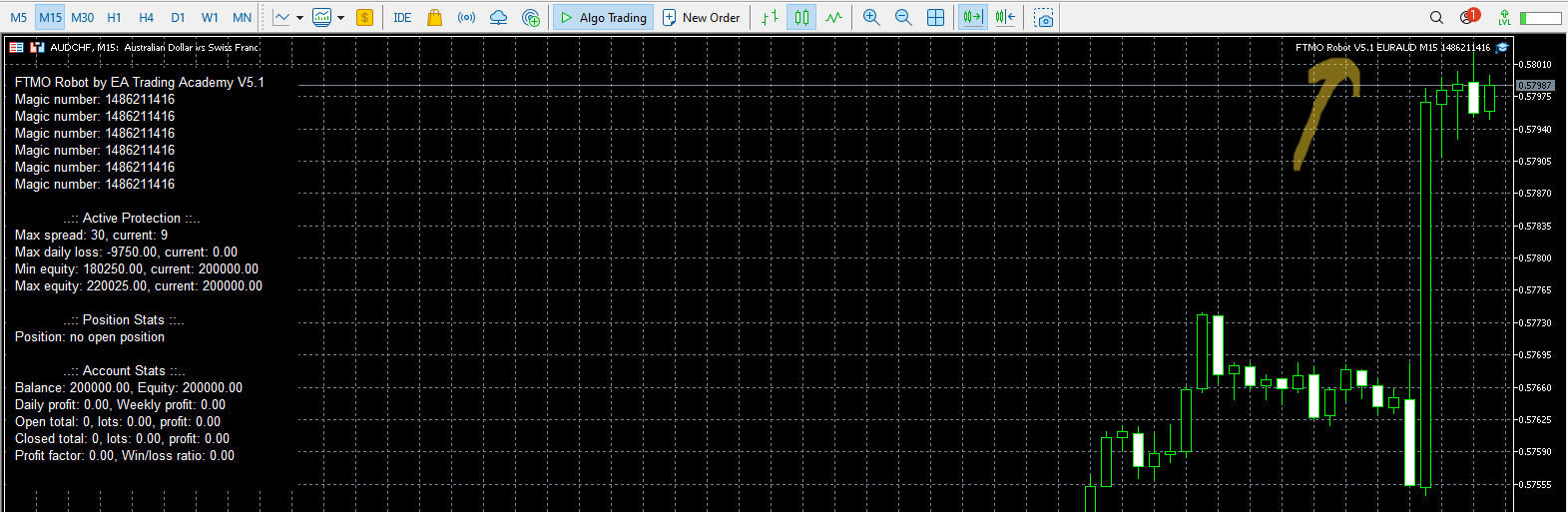 please..December 14, 2023 at 11:56 pm #220791Participant
Right click on the blue hat, select Expert Advisor, select Remove. Now you can install a new Expert Advisor.
Alan,
-
AuthorPosts
- You must be logged in to reply to this topic.