

Forum Replies Created
-
AuthorPosts
-
Marin Stoyanov
ParticipantHello Gregor,
I see that you are not having a good experience with our Prop Firm Robots.
Please keep in mind that there are bad periods for all robots. Last month we passed a challenge with the Prop Firm Robots. What we did is that we were looking for the top 5 everyday on the Weekly timeframe and High Risk.
What I would suggest is that you try different combinations such the one mentioned above and see which one is working for you. Of course try on a demo account.
Hope this helps!
Kind Regards,
NikosParticipantHey Sherman,
So, I have tested Patrex Pro before myself and I can tell you that it is not a very good robot at least at the time I tested it.
In this case, if you want my opinion, I do not recommend it.
Kind Regards,
NikosParticipantHey Boyan,
Can you please provide a screenshot for this as I cannot see any screenshot if you have provided any.
Thank you!
Kind Regards,
NikosParticipantHey Boyan,
I see that you are confused with the magic numbers. Probably the reason there are 2 pairs in one magic number is due to portfolio robot.
Just so that I can understand more on where you are looking exactly, can you please provide a screenshot so that I can help you more?
Thank you!
Kind Regards,
NikosParticipantHey Boyan,
So, in order to calculate the risk per trade and to make it be 1% per trade, you can try this link:
https://www.babypips.com/tools/position-size-calculator
It will help you calculate the risk per trade for the pairs that you wish to trade. I know that you said it’s portfolio but you can just see what pairs you have chosen and depending on that, you can write the correct information in the link that I provided so that you can see what would be the lots size.
Also, regarding the news filter, I suggest that you have it on, especially in a challenge!
Hope this helps!
If you have any more questions, let me know!
Kind Regards,
NikosParticipantHello Efe, sorry to hear about your decision. I sent you additional information on how to move forward with your refund request at your account email.
ParticipantHello Boyan,
Apologies for the late reply.
So, you can see which strategies changed by clicking on the latest button on the top right corner of the app which says latest and you can see what are the new strategies. To see which are changed, you need to check the magic number of each EA.
For example, you can see the Top 3 Robots here:
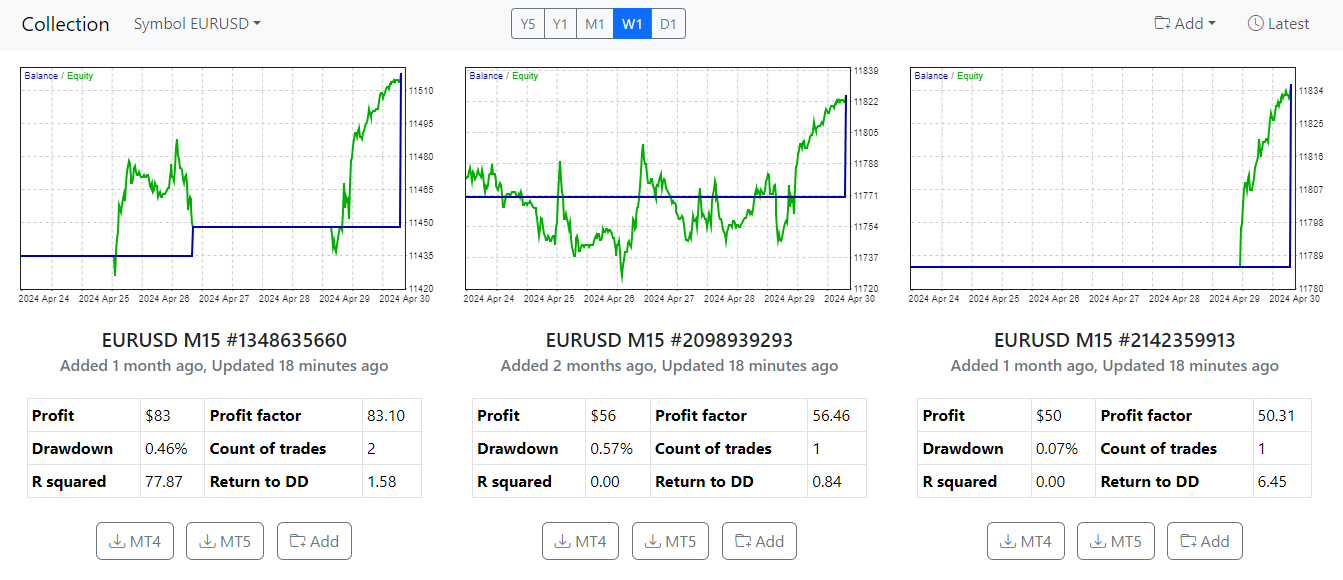
In each EA, you can see a number next to the pair and timeframe and example to that is EURUSD M15 #1348635660. This number #1348635660 is the number you need to look to see which EA is which.
Also, in the screenshot above, on the top right corner, there is the Latest button which if you click it, a window will appear that shows the latest strategies that were added and how much time ago:
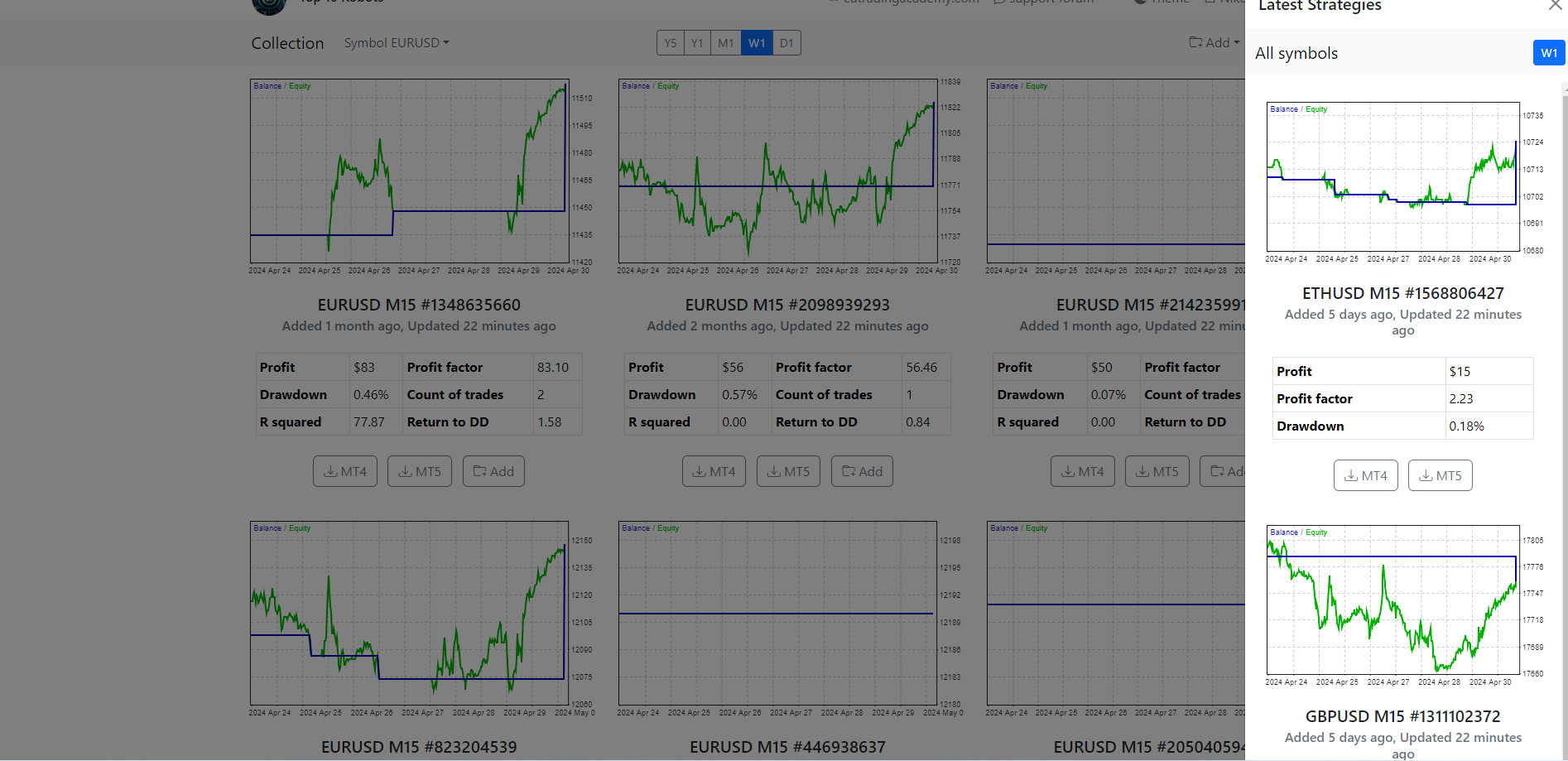
This is how it looks when you click the Latest button. Keep in mind that it shows the latest strategies from all pairs.
In order to identify which EA is which, you can just check the magic number as mentioned above and change them accordingly in your account.
Hope this helps!
If you have any more questions, let us know!
Kind Regards,
NikosParticipantHey Pak Kui,
We do not close trades manually, we let the robots do everything themselves after we have set them up with the correct settings.
Regarding the trades, it’s based on the market conditions on when they will hit a target that has been set by the robots, so it’s best to be patient on that.
Hope this helps!
Let me know if you have any more questions!
Kind Regards,
NikosParticipantDear traders,
We have an update on the Top 10 EAs App.
With this update, an issue got fixed which caused the exported Expert Advisors to have wrong trading session settings.
If you have the Top 10 EAs App open, just press Ctrl + F5 to refresh.
Also, it’s best if you have any expert advisors that are running in metatrader to replace them with the updated ones!
If you have any questions, let us know!
Kind Regards,
NikosParticipantHey Michal,
For the Waka Waka, we asked the developer to provide us with a set file and we used it for our accounts.
In this case, you can request a set file from the developer.
Hope this helps!
Let me know if you have any other questions!
Kind Regards,
NikosParticipantHey Ednan,
I am really sorry for the late reply.
We are always trying to be transparent and try to show results.
You can find the set files that we are using in the description of this video:
Hope this helps!
Let me know if you have any more questions!
Kind Regards,
NikosParticipantHello Ahmad,
I checked your account and you have an active license until 2024-07-07. After looking into this in more depth, I found out that you have multiple registrations on our site related to your email address. I merged them into one registration. Please try to log in again using one of the passwords you used for the two accounts. If you see a message about a forgotten password, then you need to reset your password and going forward you will be able to easily login using the newly set password.
ParticipantHello Boyan,
So, the crypto robots are not working on cryptocurrency exchanges. You can see what brokers we are using that do use Metatrader in the link below:
https://platform.algotradingspace.com/trusted-brokers/
Hope that helps!
Let me know if you have any other questions!
Kind Regards,
NikosParticipantHey Edina,
Sure, give it a try and let me know if it worked!
Thank you!
Kind Regards,
NikosParticipantHi Edina,
That is actually the way to do it. Have you tried on a different broker?
I think it could be that the robot might not be reading the historical data from this broker.
Kind Regards,
Nikos -
AuthorPosts